

SILO Planner
A content silo is a group of interlinked articles that establishes topical authority: one pillar page covers a broad topic, and multiple supporting pages cover specific subtopics — all linking to each other.
SILO Planner generates a content plan for your silo automatically, then creates Article Workers for each page in the plan.
Creating a SILO Plan
- Go to your project and click the SILO Planner tab
- Click New Plan
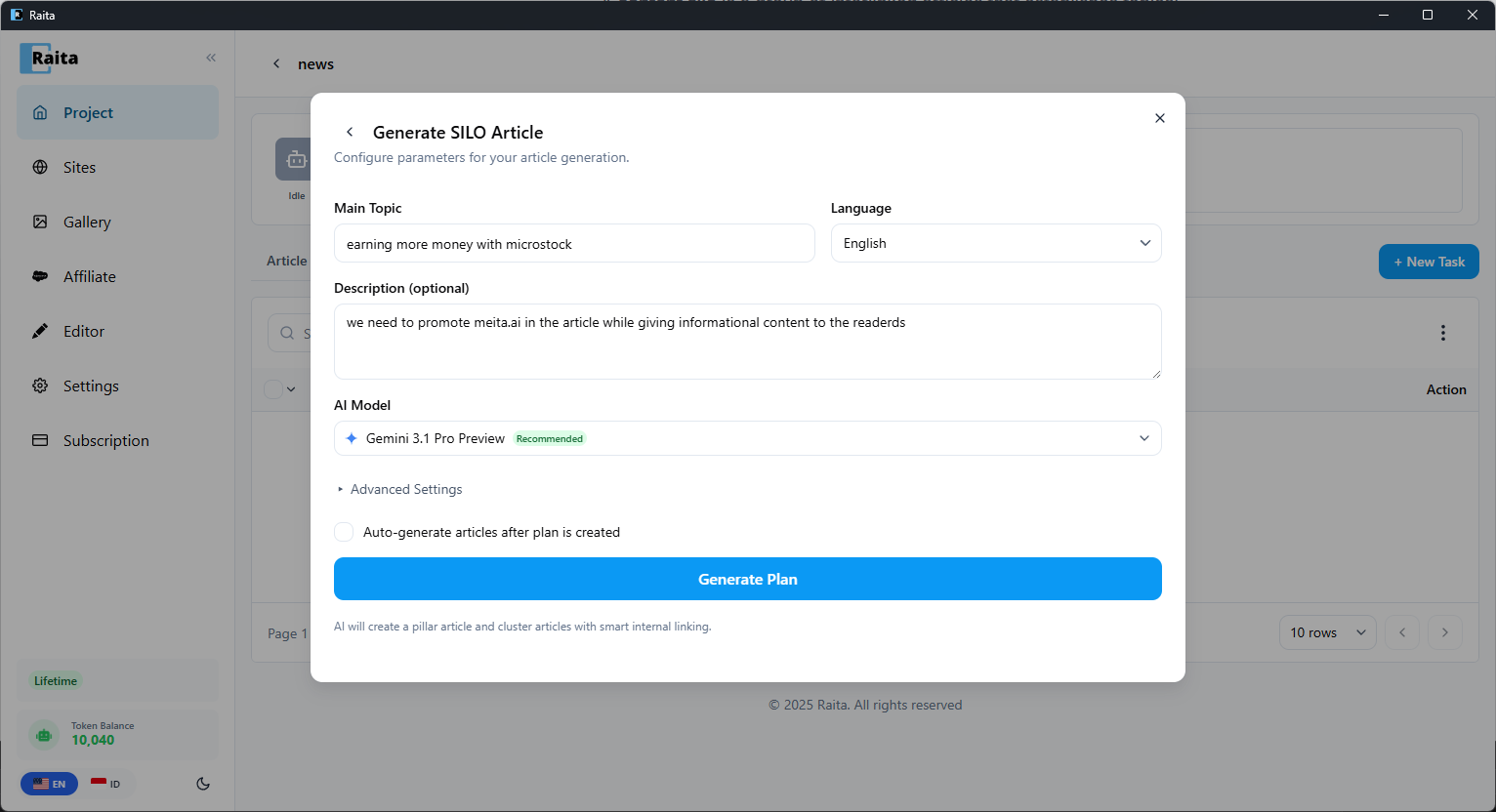
- Enter a Main Topic (e.g. "earning more money with microstock")
- Choose the Language for the generated plan
- Optionally add a Description to guide the AI (e.g. "we need to promote meita.ai in the article while giving informational content to the readers")
- Choose an AI Model — Gemini 3.1 Pro Preview is recommended
- Optionally check Auto-generate articles after plan is created to immediately start generating workers
- Click Generate Plan
AI will create a pillar article and cluster articles with smart internal linking.
Reviewing & Generating the Plan
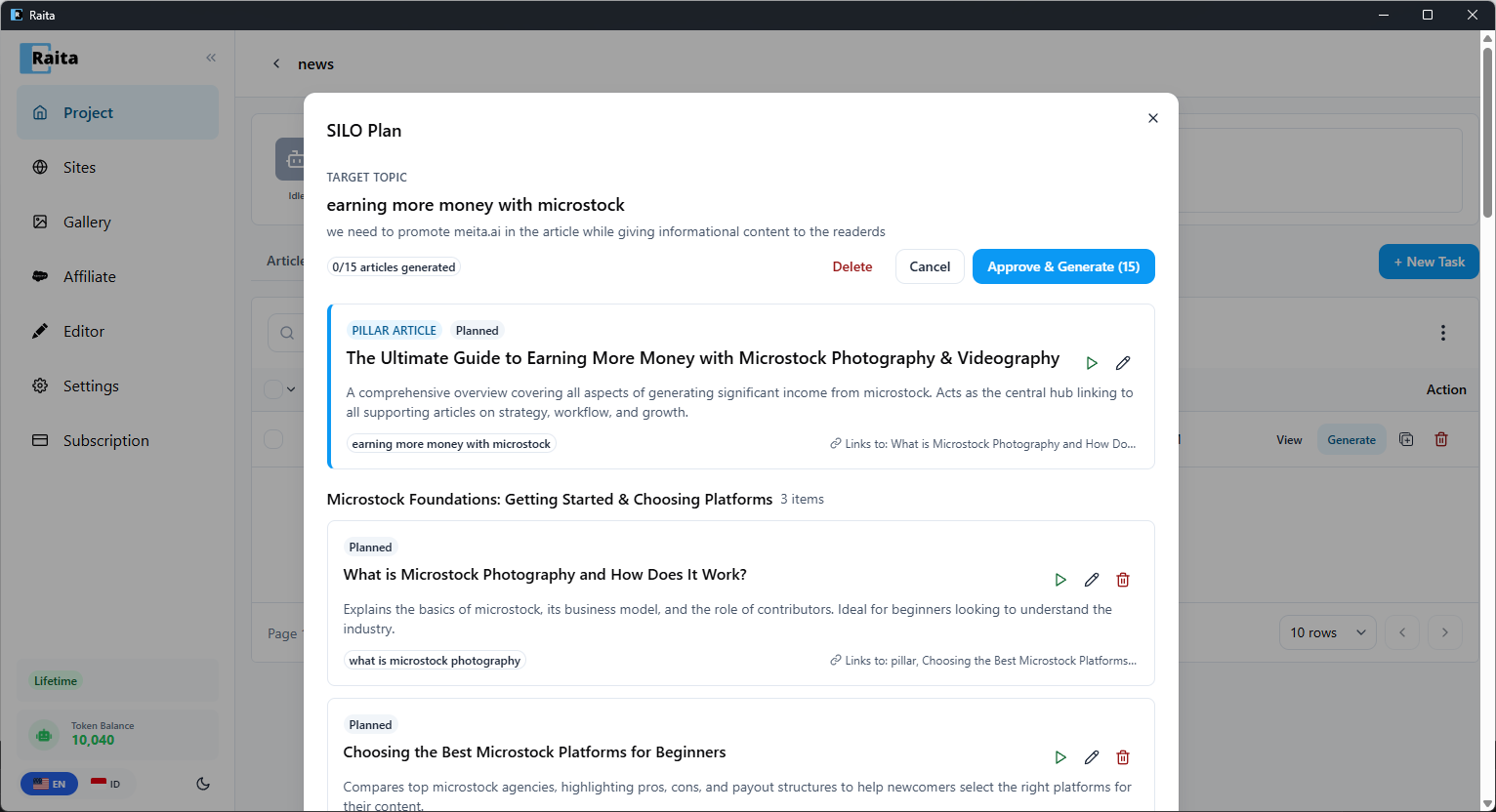
After generation, click a plan to open the detail view. You'll see:
- The target topic and description at the top
- A progress counter (e.g. "0/15 articles generated")
- The Pillar Article — the central hub page that links to all supporting articles
- Cluster groups — supporting articles organized by subtopic, each with a title, description, keyword, and internal link targets
Each article card shows:
- Status (Planned, Generating, Done)
- Keyword used for generation
- Links to — which other articles in the silo it will link to
- Action buttons to play (generate individually), edit, or delete
When you're ready, click Approve & Generate to create Article Workers for all planned articles at once. You can also Delete the plan or Cancel.
Advanced Settings
Expand Advanced Settings in the form to fine-tune:
- Number of cluster articles to generate
- Custom prompt template for the generated workers
If no template is attached, workers use the project's default prompt settings.