

Clone Bot
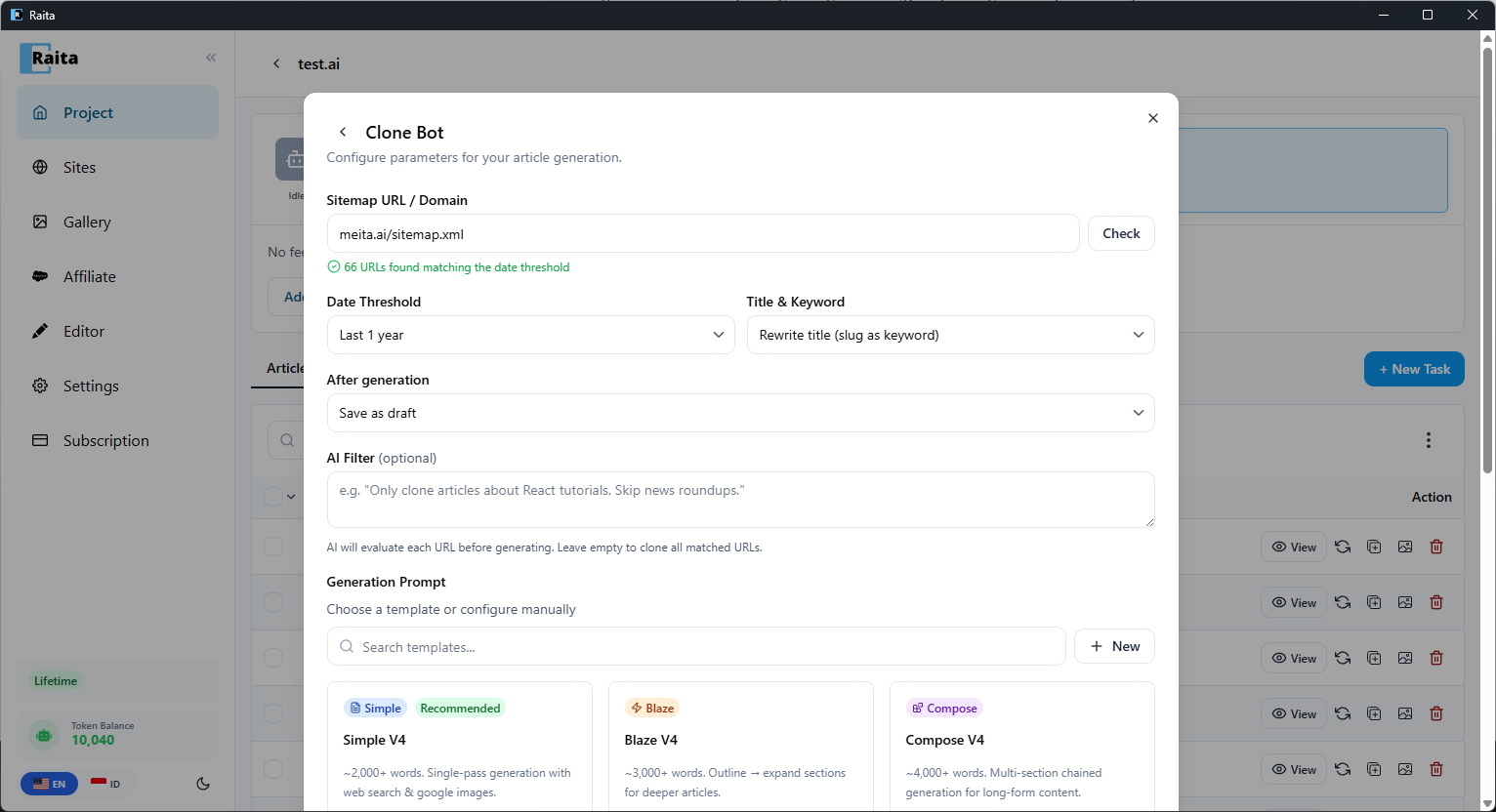
Clone Bot lets you clone an entire website's content by reading its sitemap and generating new articles based on those URLs — using a prompt template of your choice.
Use case: You want to clone your other site's article list to a new domain, or replicate a competitor's topic coverage with your own unique articles.
How to Use Clone Bot
- Enter a Sitemap URL or Domain (e.g.
meita.ai/sitemap.xml) and click Check — Raita fetches and parses all article URLs - Set Date Threshold to filter by recency (e.g. "Last 1 year") and choose how to extract Title & Keyword from the URLs
- Choose what happens After generation — save as draft or publish directly
- Optionally set an AI Filter to skip irrelevant URLs (e.g. "Only clone articles about React tutorials. Skip news roundups.")
- Choose a Generation Prompt — pick a starter template (Simple V4, Blaze V4, Compose V4) or configure manually
- Click Clone Article
Reviewing URLs
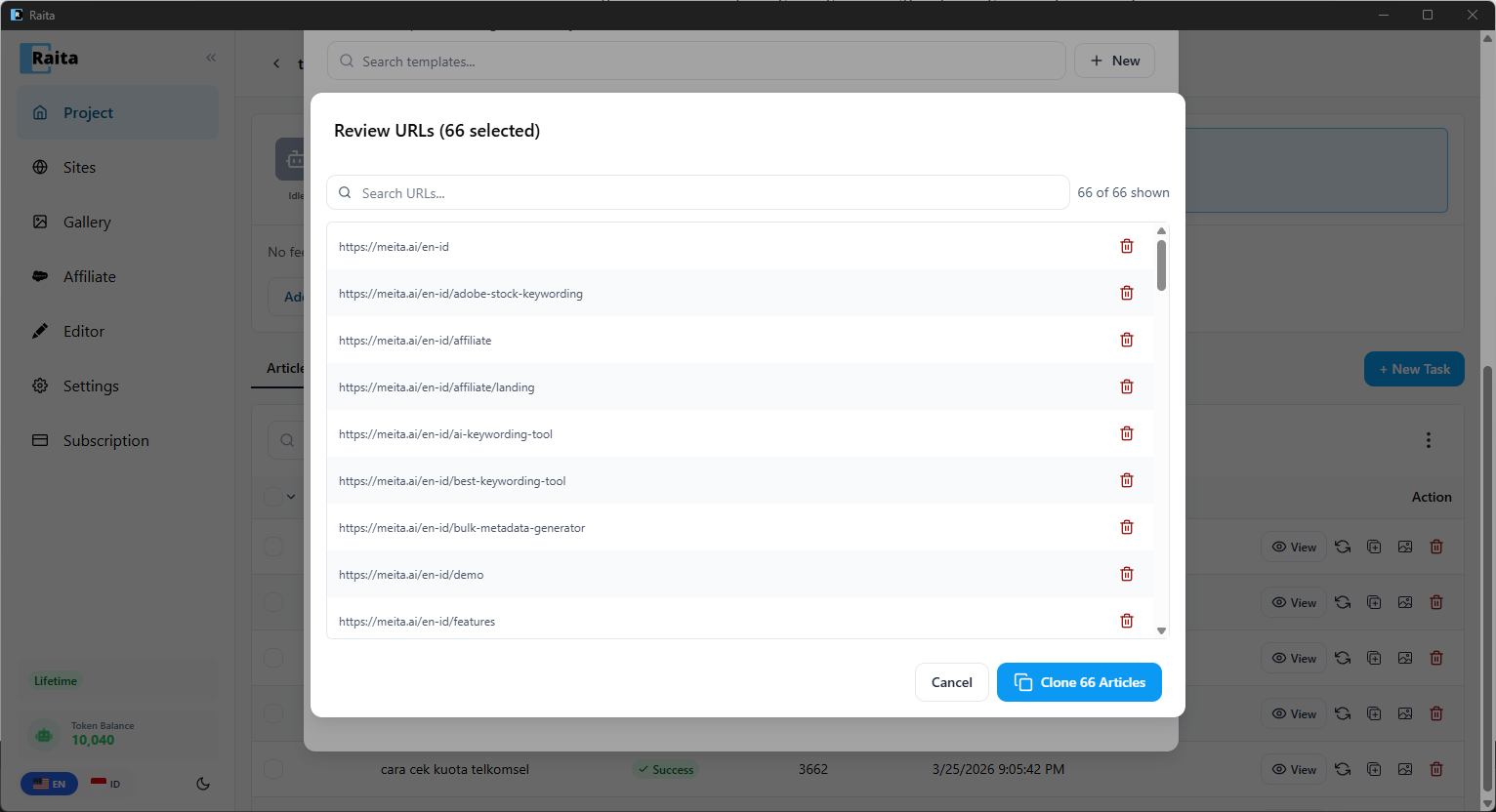
After clicking Clone Article, Raita shows a list of all matched URLs. Review the list and remove any URLs you don't want to clone (e.g. landing pages, pricing pages, non-article content) by clicking the delete icon next to each URL.
When ready, click Clone Articles to start generation.
Configuration Options
| Option | Description |
|---|---|
| Sitemap URL / Domain | The source sitemap or domain to scan for articles |
| Date Threshold | Only include articles published within this period |
| Title & Keyword | How to extract the article title — rewrite from slug, use page title, etc. |
| After generation | Save as draft or auto-publish to connected WordPress site |
| AI Filter | Optional prompt to evaluate each URL — AI decides which to include |
| Generation Prompt | The prompt template to use for generating the cloned articles |
Notes
- Workers created by Clone Bot are identical to manually created workers — they appear in the same table and can be retried, edited, or exported
- If no template is attached, workers use the project's default Simple mode prompt
- Large URL lists (100+) may take time to queue — the queue processes workers according to the batch-per-run setting in Settings
- Batch progress is tracked and displayed until all workers are created