

Feed Monitor
Feed Monitor automatically watches RSS and Atom feeds for new articles, filters them for relevance, and converts approved items into Article Workers for generation. This enables hands-off content discovery and bulk processing from multiple sources.
Setting Up a Feed Source
Feed sources are created and managed at the project level. To add a new feed source:
- Navigate to your project dashboard and find the feed source management interface
- Enter the RSS or Atom feed URL and select the feed type
- Set a polling interval (how often Raita checks for new items)
- Optionally enable an AI filter with criteria (e.g., "Only articles about real estate")
- Policy (optional): set to Auto Draft to automatically create workers without inbox review, or Auto Publish to create workers and publish immediately. Leave blank to require manual approval from the inbox.
- Save the source
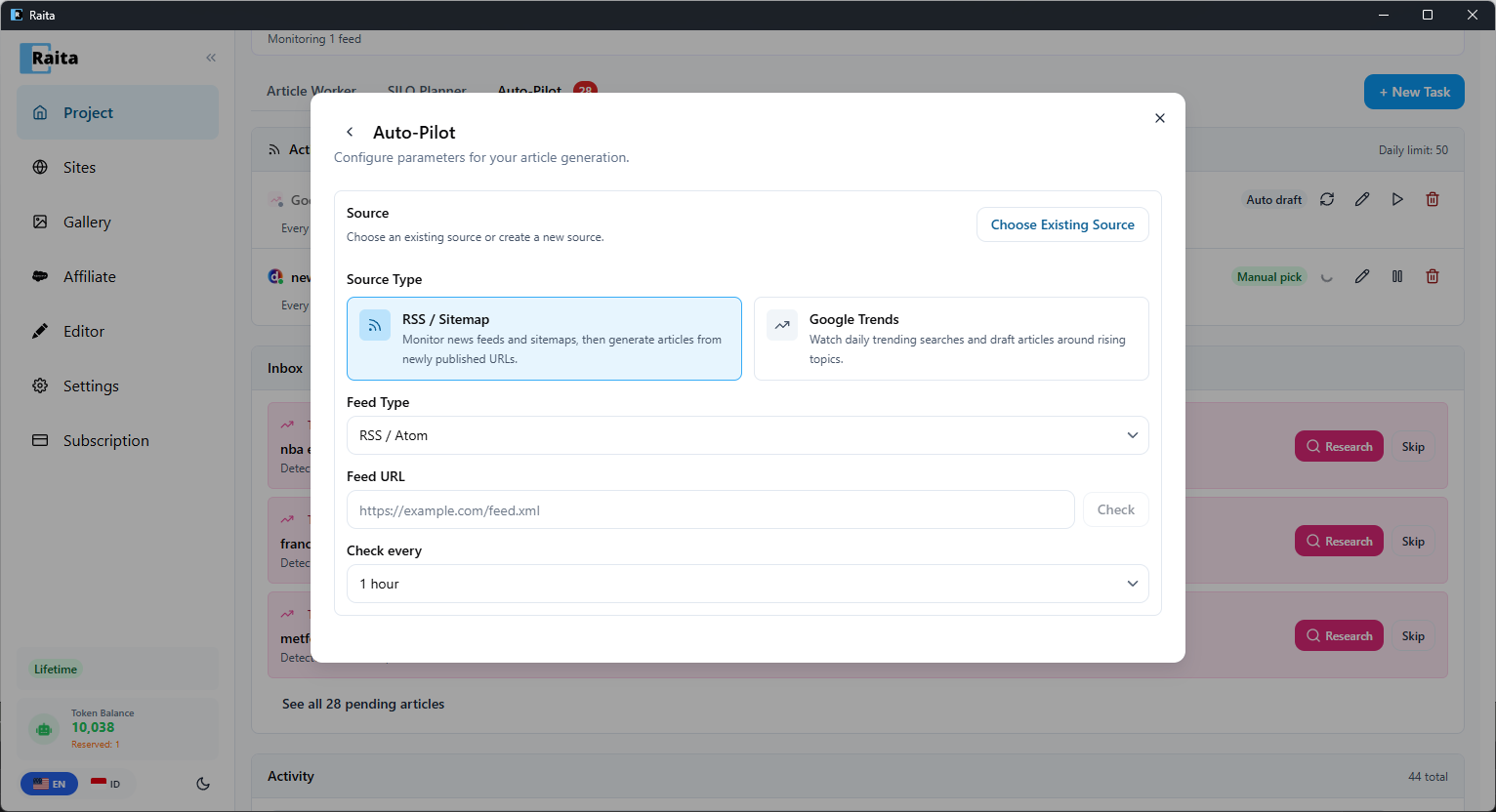
You can also choose an existing source and configure it further — set the AI filter to match your niche (e.g. "only work on politics"), choose a daily limit, and pick a generation prompt template.
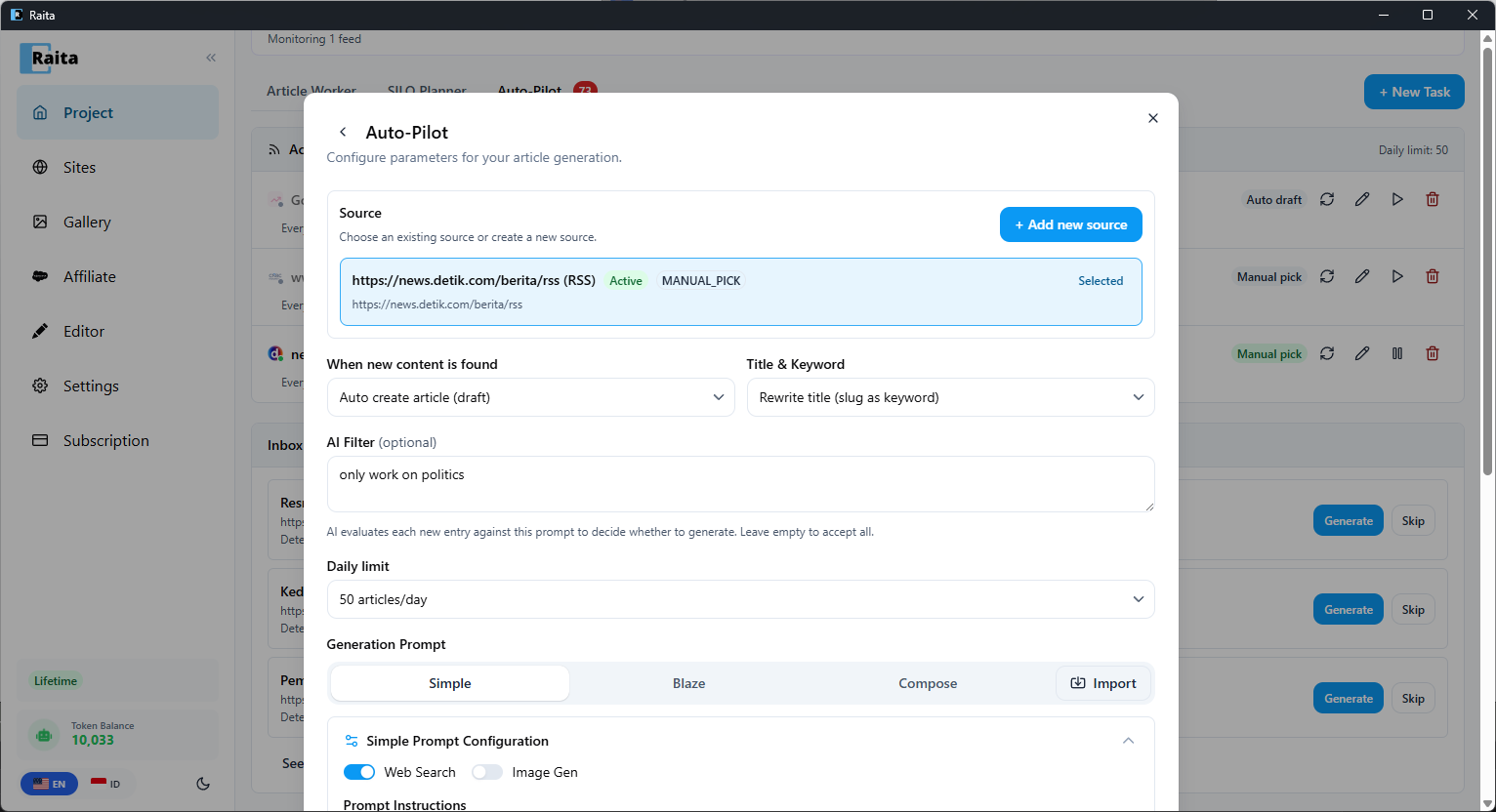
Attaching a Prompt Template
Each feed source can have an optional article generation template attached. When a feed item is approved and converted to an Article Worker:
- The template's prompt is loaded
- The feed article's title, URL, and excerpt are automatically injected into the prompt context
- The worker uses this enriched prompt for generation
This means your feed items provide direct content context for the generated articles, avoiding generic or off-topic results.
Feed Inbox
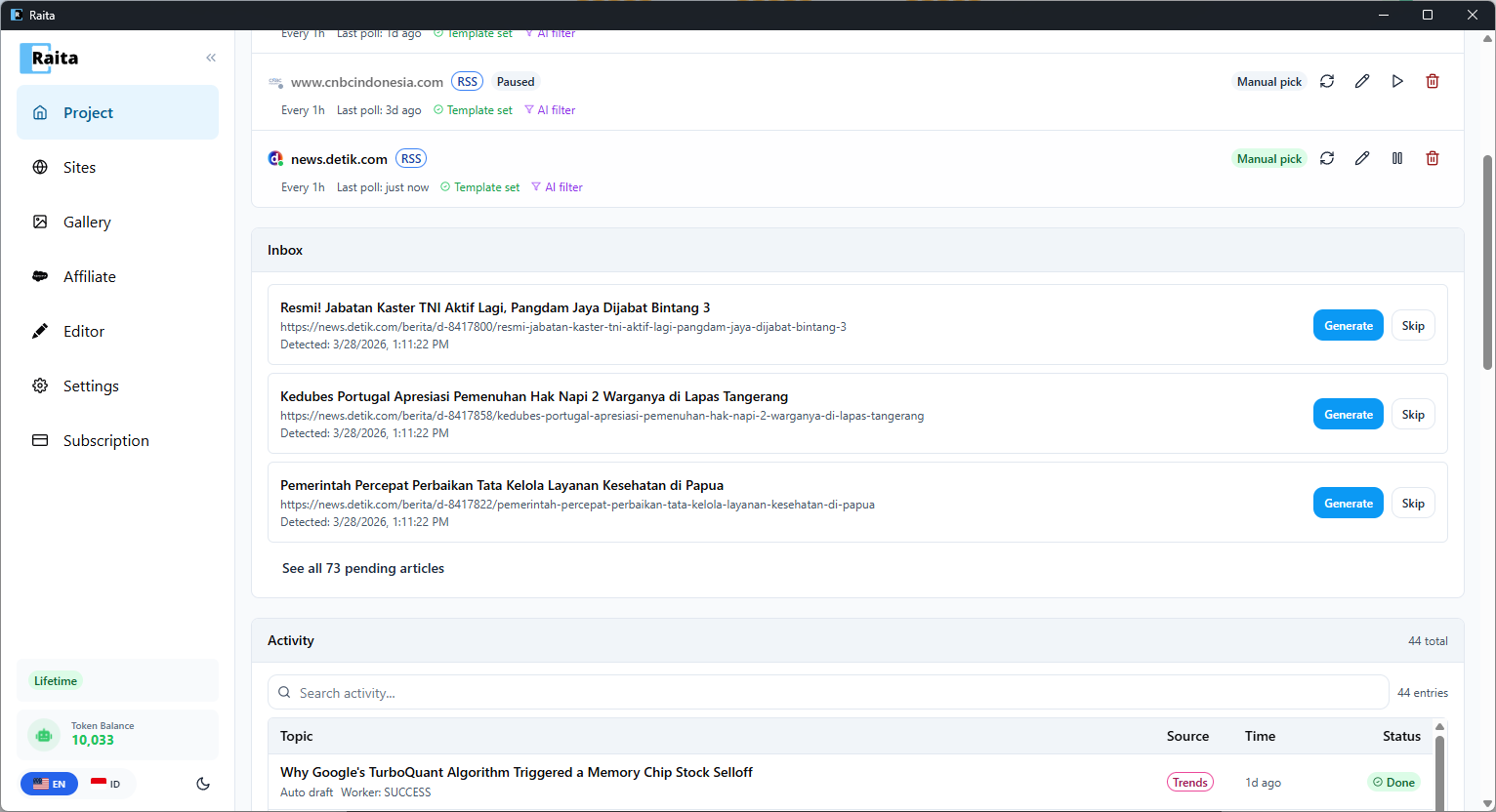
The Feed Inbox displays incoming feed items awaiting your action. Each item shows:
- Title and excerpt from the feed entry
- Publication date and source feed
- Status indicators (new, pending, etc.)
Approving and Skipping Items
For each inbox item, you can:
- Approve → Creates an Article Worker and immediately begins generation using the feed source's prompt template
- Skip → Dismisses the item; it moves to the Skipped tab
AI Filtered Tab
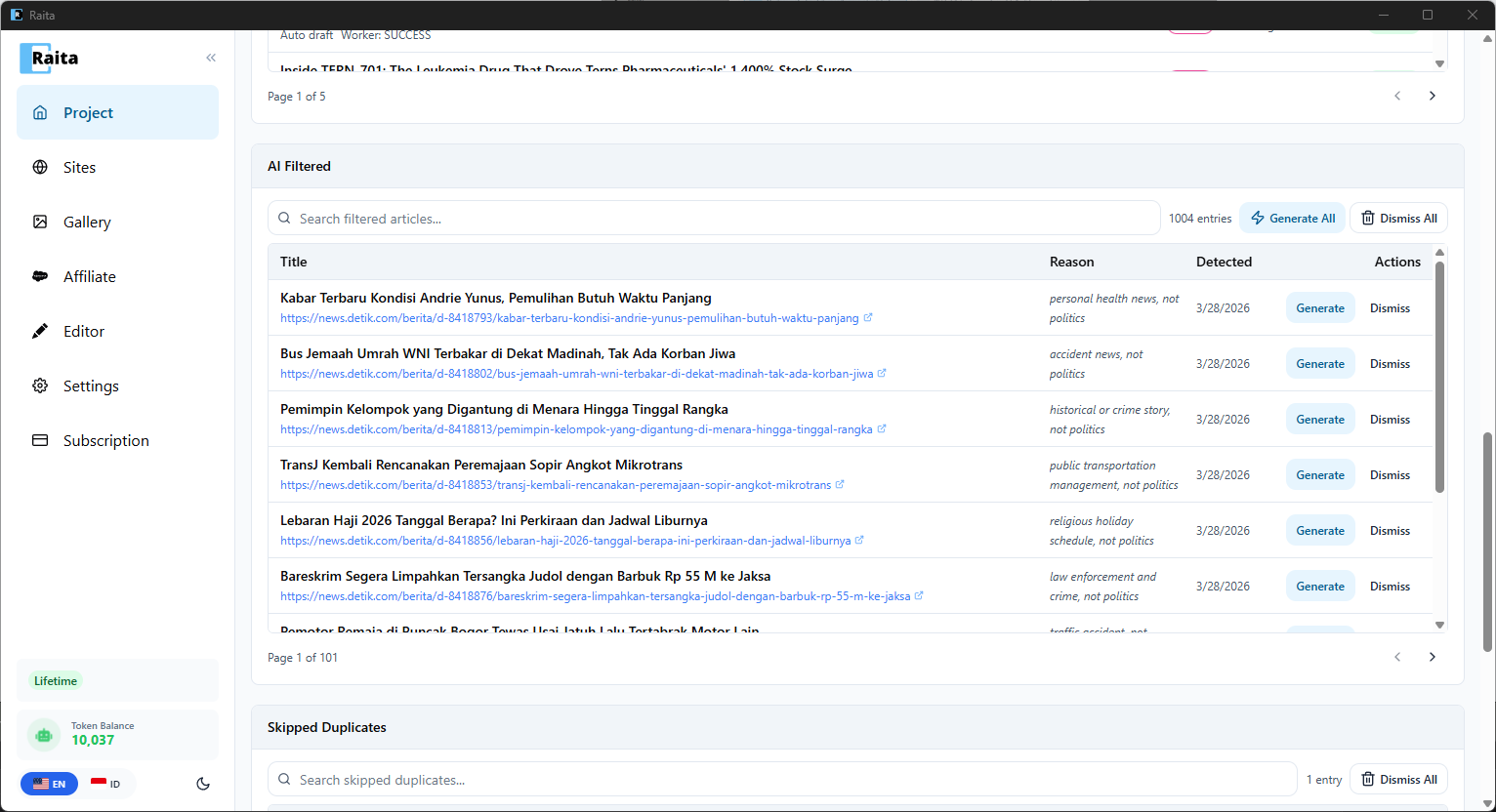
The AI Filtered tab displays feed items that did not match your AI filter criteria. When you configure an AI filter on a feed source (e.g., "Only articles about housing market"), items that don't match are automatically routed here instead of the main inbox. You can review these items and either bulk-generate workers from them (to override the filter) or dismiss them entirely.
You can also undo dismissals or override previously skipped items by clicking "Generate" from the Skipped or AI Filtered tabs.
Automation
When a feed source has an AUTO_DRAFT or AUTO_PUBLISH policy enabled:
- Approved items automatically create Article Workers without requiring manual action
- AUTO_DRAFT workers are queued for generation and remain as drafts
- AUTO_PUBLISH workers are queued for generation and are automatically published to your target site (WordPress, Blogger, etc.) when complete
In both cases, the generated worker uses the feed source's attached prompt template with the feed article context injected, ensuring consistent, contextually relevant output.
Feed items are deduplicated against existing site articles and worker topics before processing, preventing duplicate work.