

Template Import & Export
Raita can save your prompt configuration to a plain-text file and reload it later. Use this to:
- Share prompt templates with teammates
- Version-control your prompts in git
- Reuse a proven prompt setup across multiple projects
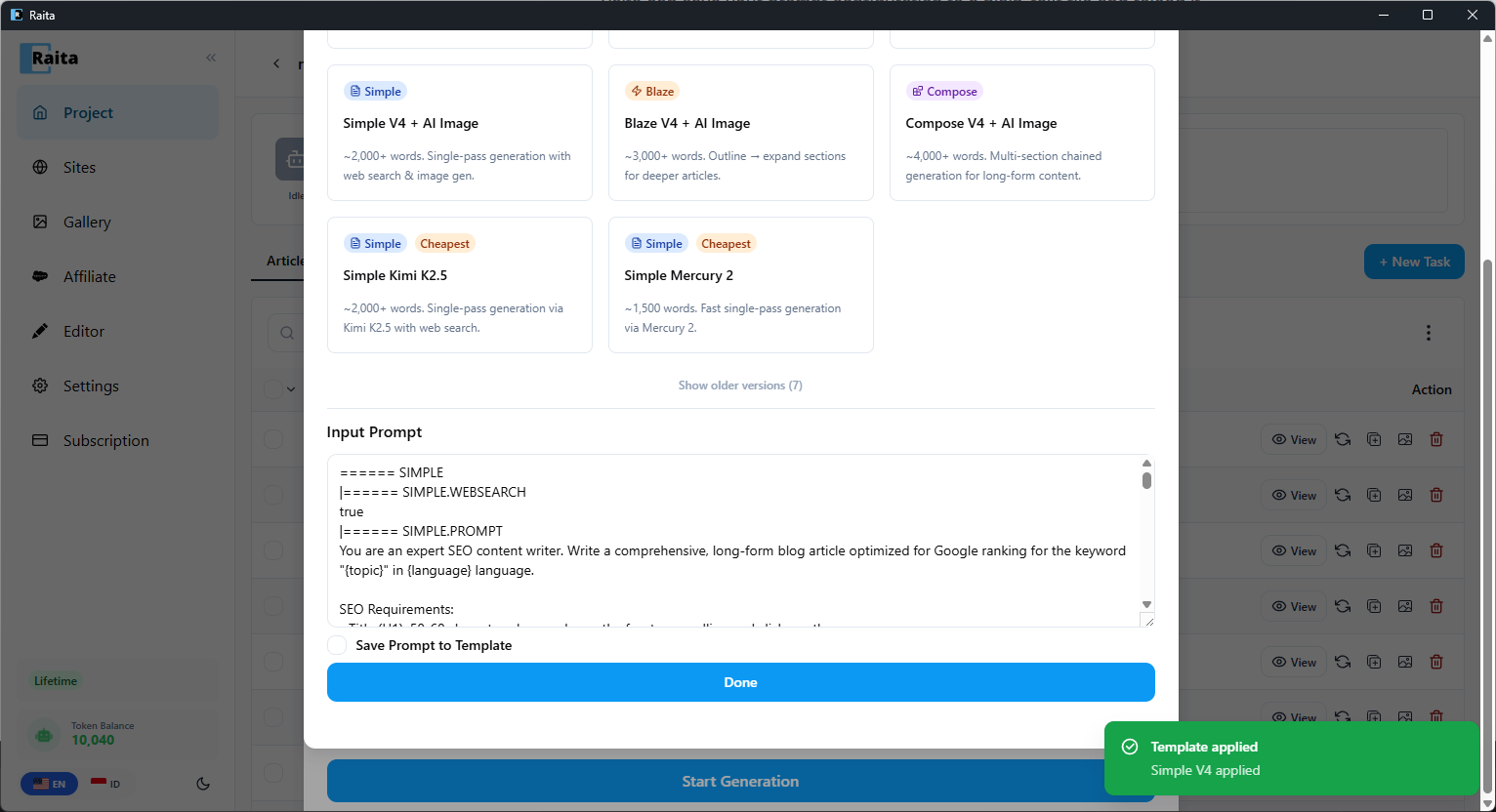
Exporting a Template
- Configure your prompts in the New Task form (Simple, Blaze, or Compose tab)
- Click Export Template
- Save the
.txtfile
Template File Format
Templates are plain text files with section markers. Here is a Simple mode example:
====== SIMPLE

|====== SIMPLE.PROMPT
Write a comprehensive article about {topic} for a {niche} audience.
Use HTML formatting. Language: {language}.

|====== SIMPLE.TEMPERATURE
0.7

|====== SIMPLE.MODEL
gpt-4o

|====== SIMPLE.WEBSEARCH
false

|====== SIMPLE.IMAGEGEN
false

|====== AUTO_INTERNAL_LINK
false
A Blaze mode template uses ====== BLAZE at the top, with markers like |====== TITLE.PROMPT, |====== SECTION.PROMPT, |====== DETAIL.PROMPT, etc.
A Compose mode template uses ====== COMPOSE with |====== META.PROMPT, |====== CONTENT_1.PROMPT, |====== CONTENT_2.PROMPT, etc.
Editing a Template
Open the exported file in any text editor. Edit the prompt text between the markers. Save the file.
Rules:
- Do not change the marker lines (lines starting with
|======or======) - Temperature must be a decimal number (e.g.
0.7) - Model must be a valid model ID string
- WEBSEARCH and IMAGEGEN must be
trueorfalse
Importing a Template
- Open the New Task form
- Click Import Template
- Select your
.txtfile - The form fields will populate with the template's values
- Adjust any fields as needed, then submit